Have you or someone you know ever bought a bargain laptop, only to run out of storage within a year or discover that you cannot upgrade any of the components? In this article, we will explore commonly overlooked factors to consider when buying a laptop. By knowing these factors, you can avoid common laptop shopping pitfalls that lead to frustrating product experiences and a waste of money.
However, if you just want to get to the good stuff, check out our top laptop picks.
A great laptop deal is not always about saving money upfront; it is about ensuring that you get a quality product tailored to your intended use that can grow with you. Here are the critical, often hidden details you need to check before clicking “buy.”
Disclosure: This article contains Amazon affiliate link(s). We may earn a commission from Amazon on qualifying purchases, at no extra cost to you. Your purchases help support this platform. Thank you!
Understanding RAM and Why It Matters
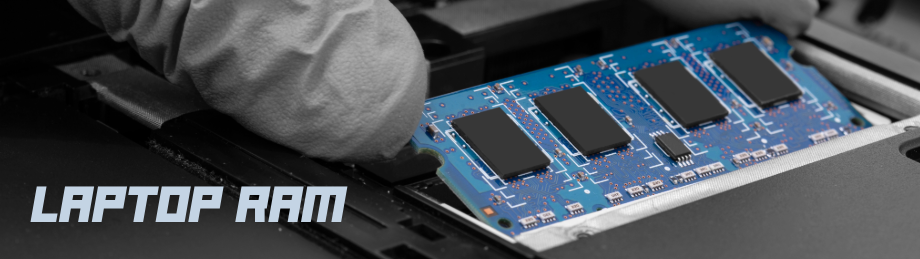
Before diving into upgradability, we must understand what RAM (Random Access Memory) is and what it does.
What is it? Imagine your laptop has two types of memory. One is storage memory, which holds all your files permanently until you delete them. The other is temporary memory, which is fast and temporarily holds and feeds tasks or data to the computer’s brain, the Central Processing Unit (CPU).
RAM allows your computer to access data instantly. When you open a document, listen to music, or browse a website, the system pulls those files from the hard drive and copies them into RAM so your processor can read them quickly.
- More RAM Means Your System Can Run More Tasks: With more RAM, you can have dozens of browser tabs open while recording video and writing documents simultaneously without the computer slowing down.
- Less RAM Equals Sluggishness: If you run out of “desk space” (RAM), your computer starts shuffling data back and forth between the slow hard drive and the fast RAM constantly. This causes that frustrating lag where the cursor freezes or applications take more time to launch.
Think of RAM as short-term memory. You forget things quickly once you stop thinking about them. Likewise, data disappears from RAM when you shut down your laptop.
Upgradable vs Not Upgradable Laptops
A common frustration that laptop users experience is realizing too late that their device is not upgradable or easily fixable. When shopping, you must distinguish between modular (upgradable) and embedded (soldered) components. This distinction applies primarily to RAM and Storage.
Can I add more memory later?
- Modular RAM: Think of this like a slot that allows you to replace or upgrade RAM on your PC. The RAM sticks sit in slots on the motherboard, which makes it easier to replace or upgrade. If you start with 8GB, you can easily add another stick to reach 16GB or 32GB years down the road.
- Embedded (Soldered) RAM: In modern thin-and-light laptops, with low power consumption, integrated RAM is a common feature. There are no slots to plug sticks into. If the laptop ships with 8GB and your work slows down, you cannot simply add more. You would have to buy an entirely new, more expensive laptop to get extra memory.
How to check: Knowing how to check if a laptop has modular or embedded RAM requires you to know the tech acronyms that identify these specs. We will cover those ahead.
Can I expand my storage?
Storage comes in two main forms regarding upgradeability:
- Modular Storage: Business-class laptops and gaming PCs have dedicated slots where you can put an extra SSD (Solid State Drive), replace or upgrade from the existing storage. This is modular storage.
- Embedded Storage: Energy efficient laptops often use a single, soldered storage chip that acts like a hard drive but uses the same technology as high-end desktop drives. These are often harder to replace because they require specialized tools and void warranties.
Demystifying Laptop Specs Tech Acronyms
Marketing brochures are full of confusing abbreviations. Here is what those acronyms mean in plain English so you can decode the specs sheet.
RAM Types: DDR4, LPDDR4X, and LPDDR5/5X
You may see terms like LPDDR5 or LPDDR5X. What is the difference?
- DDR (Double Data Rate): This is the faster, common, upgradable RAM found in desktops and most traditional laptops. It comes in sticks you can swap. However, these are physically larger and generate more heat, which requires bulkier form design.
- LPDDR (Low Power DDR): The “LP” stands for Low Power. These chips use electricity significantly less than standard RAM. This is why your phone, or Ultrabook battery lasts longer.
- The Catch: Since manufacturers design LPDDR RAM to be tiny and efficient, they normally solder it onto the board. So, you cannot upgrade it later.
- LPDDR5 vs. LPDDR5X: The numbers refer to speed and efficiency versions. LPDDR5X is faster and more efficient than LPDDR5, which allows for better battery life or slightly higher performance in thin devices. However, remember: Speed does not equal upgradability. If it says “LPDDR,” avoid it if repairability and upgradability are important to you.
Storage Types: eMMC vs. SSD
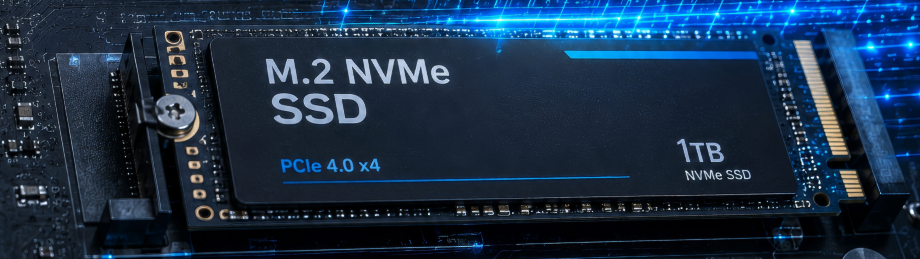
You might see eMMC listed as a storage option in budget laptops. In plain English:
- eMMC (Embedded Multi-Media Card): Think of this as a flash memory chip designed for portable storage or smartphones. It is cheap, but it is significantly slower than an SSD and often soldered onto the board. It acts like a hard drive but can feel sluggish when opening large programs or installing more apps.
- SSD (Solid State Drive): Specifically, NVMe M.2 (Non-Volatile Memory Express Module Version 2), are the innovative computer storage devices of today. These are fast, dependable, and replaceable.
The Rule of Thumb: Never buy a laptop with eMMC storage unless it fits your use case scenario. The speed difference is night and day. Aim for a minimum of 256GB NVMe SSD; if possible, get 512GB or more.
CPU Speed and Core Considerations
As we covered earlier, the CPU is the Central Processing Unit, the “brain” of the computer. When you are picking your laptop, you want the CPU speed to be at least 3.0GHz. Each CPU has 2 or more cores in it, which are smaller individual processors. Whether you are buying a laptop with an intel or AMD CPU, or a MacBook, remember that more cores and higher speeds equal better performance and higher cost. Vice versa, fewer cores and lower processing speeds means that you are looking at a budget laptop.
Connectivity: Are There Enough USB Ports?
A common complaint among laptop users is opening their new laptop only to find that one USB port is available and the other is the charging port. If your use case scenario requires 3 or 4 USB ports, you want to pay attention to the USB count and decide what you can work with or without.
Why Port Count Matters
- The “Charging” Problem: Modern laptops often have only two USB-C ports. One of them is for charging, which leaves you with only one data port. If you plug in a mouse, keyboard, and drive simultaneously, the laptop may struggle or fail to charge.
- The “Docking” Limitation: If your workflow involves connecting external monitors, hard drives, printers, and webcams, relying on the laptop’s built-in ports will result in cable clutter.
The Solution: High-Quality USB Hubs
If a laptop lacks enough native ports, a USB Hub is the smart solution. However, not all hubs operate the same.
- Passive vs. Active Hubs: A “passive” hub simply splits one port into three or four but does not add power. This can cause devices to disconnect if they draw too much energy. An “active” hub has its own power adapter, ensuring your mouse, drive, and monitor stay connected reliably.
- Thunderbolt/USB-C Hubs: For laptops with USB-C ports, look for a hub that supports Thunderbolt or high-speed USB 3.2/4.0. This ensures you can transfer large files quickly to an external drive while also driving a second monitor.
- Recommendation: When shopping, prioritize laptops that have at least three native USB-A ports (the standard rectangular shape) plus one USB-C port. If this is not available, budget for a high-quality $40–$60 active hub or Thunderbolt dock as part of your essential accessories, rather than buying a cheaper laptop and struggling later.
Cloud Storage: The Safety Net for Data Loss
Even with modular storage upgrades and extra USB ports, relying solely on the hardware inside your laptop is risky. Mechanical failures happen. Hard drives fail. Theft happens. This is where Cloud Storage becomes an essential part of your laptop buying strategy.
What is Cloud Storage?
Think of cloud storage as renting digital real estate in a secure data center owned by a company like Google, Microsoft, or Apple. You can automatically backup your photos, documents, and videos to these remote data storage centers.
Why Consider Cloud Storage?
- Protection Against Hardware Failure: If your embedded or modular SSD dies tomorrow, your laptop becomes useless. However, if you have cloud storage enabled (like OneDrive, Google Drive, or iCloud), your files are already safe in the cloud. You can buy a new cheap laptop tomorrow, log in, and your documents, pictures, and anything you save will be there instantly.
- Version Control: Cloud storage often keeps “history.” If you accidentally delete a paragraph or save a file over one with important data you forgot about, cloud versions can restore it to the state from yesterday or last month.
- Accessibility: You never have to worry about carrying a heavy hard drive. If you have internet connection, your files are available on your laptop, tablet, and phone simultaneously.
Implementation Strategy
- Buy a Laptop with Built-in Cloud Integration: New Windows laptops often come with a trial of Microsoft 365, a version of Microsoft Office, which includes a generous amount of OneDrive cloud storage for free. Apple MacBooks come with iCloud included. If a laptop includes these services, you could save money with annual subscriptions.
- Backup Strategies: Using Cloud storage for backups takes the storage monitoring and maintenance off your hands. But be sure to set a strong password and use 2-Step Verification for any account associated with your Cloud storage and backups. If Cloud storage/backup is not for you, have at least 2 External drives. On Windows, use the first drive to create a System Image using a Windows built-in tool. The System Image is a mirror of Everything on your drive at the time you create the image. Put that drive somewhere safe, then use the second drive for your regular scheduled backups. The strategy is the same for MacBooks, except you will use Apples’s Time Machine backup tool.
Summary: Laptop Shopping Guide Checklist
There are use cases where buying a cheap laptop with embedded components might be right for you, like streaming, checking emails, or social media. It all comes down to your intended use. To ensure you avoid the pitfalls of buying a bargain laptop that turns into a headache, run your potential purchase through this checklist:
- RAM Strategy: Is it Modular (slots) or Embedded (soldered)? If soldered, did you buy the maximum RAM available for your computing needs?
- Storage Type: Is it an NVMe SSD, or the slow and embedded eMMC?
- Memory Tech: Does it use LPDDR memory (soldered) or standard DDR?
- Connectivity: Do you have at least 2-3 native USB ports? If not, are you prepared to invest in a high-quality active hub?
- OS Utility: Which Windows 11 edition is right for you; S Mode, Home, or Pro?
- Data Safety Plan: Does the laptop offer built-in cloud storage integration (like OneDrive/iCloud) to protect against hardware failure and data loss?
- Build Quality: Is the chassis made of metal, and are screws easily accessible for future repairs?
By looking deeper than the price point and digging into these structural, technical, and strategic details, you ensure that your investment remains functional, secure, and upgradable for years to come. Do not just buy a laptop; buy a tool that fits your computing needs and data safety.